
How to prove to your provider your internet is slow
To prove your internet is slower than what you pay for, you need a record, not a single test. Rule out your Wi-Fi first, then run speed tests several times a day for at least a week, including evenings. Write down the time, download, upload and latency of each, and send your provider the pattern along with your plan's advertised speed.
Why doesn't one speed test count?
Support agents hear "my internet is slow" all day. A single screenshot of a slow test is easy to dismiss, and often for fair reasons:
- It might be your Wi-Fi. A phone two rooms away from the router can easily measure a fraction of your line's real speed.
- It might be a moment. Someone else in the house was streaming, or a game was downloading an update.
- It might be the test server. One busy server on one evening says little about your line.
What a provider can't dismiss easily is a pattern: the same drop, at the same hours, on many days, measured in a way that rules out your own equipment.
Step 1: Rule out your Wi-Fi
Before collecting evidence, make sure you're measuring your internet line and not your Wi-Fi. Otherwise the first thing support will say is "it's your Wi-Fi", and they may be right.
The most reliable way is a cable. Plug a computer into the router with an Ethernet cable and run a speed test. If the wired result is fast but Wi-Fi is slow, your problem is at home, and the guides on Wi-Fi dead spots and choosing a channel will help more than a call to your provider.
No cable? Then:
- Test in the same room as the router, ideally in clear view of it.
- Use the router's 5 GHz network if it has one. It's faster at short range than 2.4 GHz.
- Ping your router while you test. If the router answers quickly and steadily, your Wi-Fi isn't the bottleneck. The guide Is it your Wi-Fi or your internet provider? explains how.
Also pause anything else that uses a lot of data during tests: streaming, game downloads, cloud backups.
Step 2: Test over time, at different hours
Run tests for at least 7 days, and spread them across the day. A good minimum is:
- morning (around 8–9 am),
- midday,
- early evening (6–7 pm),
- peak evening (8–11 pm),
- late night (after midnight), as a baseline.
Why the evenings? Most home internet slowdowns are congestion: everyone in your area is online at the same time, and the shared part of your provider's network can't keep up. A connection that delivers its full speed at 3 am and a third of it at 9 pm has a capacity problem on the provider's side. That pattern is exactly what you want to capture.
Keep the conditions the same for every test: same device, same spot, same connection (cable or the same Wi-Fi band), same test service.
Step 3: Record the right numbers
For each test, write down:
| Field | Why it matters |
|---|---|
| Date and time | Shows when slowdowns happen |
| Download (Mbps) | The number your plan is sold on |
| Upload (Mbps) | Matters for video calls and backups; plans often promise it too |
| Latency (ms) | High latency makes everything feel slow, even with good download speed |
| Wired or Wi-Fi | Shows you ruled out Wi-Fi |
| Failed tests | A test that couldn't connect at all is evidence of an outage |
A spreadsheet works fine. Add your plan's advertised speeds at the top so the gap is obvious.
Step 4: Know what's normal
Not every shortfall is a fault, so check your expectations before you call:
- "Up to" speeds are maximums. Many providers advertise "up to 500 Mbps". Some countries require providers to state a typical or minimum speed in your contract; look for it.
- Some overhead is normal. Even a perfect line usually measures a bit below the plan's number, because part of the capacity carries the protocol itself. Results around 90% of the advertised speed on a cable are generally fine.
- Upload is often much lower than download on cable and DSL plans. Compare it with the upload speed in your plan, not with download.
- Speed test servers differ. Different services give somewhat different results. Stick to one service for your record so the numbers are comparable.
What's not normal: download speeds far below your plan on a cable, every evening; latency that jumps from 20 ms to several hundred; or tests that fail outright.
Step 5: Present the evidence
When you contact support, be specific and keep it short:
- Your plan: name and advertised download and upload speed.
- What you measured: "Over 7 days, wired to the router, evening tests between 8 and 11 pm averaged 95 Mbps download against a 500 Mbps plan. Late-night tests averaged 470 Mbps."
- What you ruled out: "Tests were wired. I restarted the router on [date]. No other devices were using the connection during tests."
- Attach the data: the spreadsheet or CSV file, plus a chart if you have one.
- Ask for something concrete: a line check, a technician visit, or a price reduction for the period you didn't get the service you pay for.
If the first agent doesn't help, ask for the case to be escalated, and keep testing. A second week of data with the same pattern strengthens your case. If your country has a telecom regulator, many accept complaints after the provider has had a chance to respond, and your record will matter there too.
Common mistakes
- Testing on a weak Wi-Fi signal. It measures your Wi-Fi, not your line.
- Testing only when it's slow. You also need the fast results, to show that the slowdown follows a pattern.
- Changing conditions between tests. Switching devices or rooms makes the numbers impossible to compare.
- Testing on a VPN. A VPN adds its own limits. Turn it off for the record.
Doing it with WiFi Meter
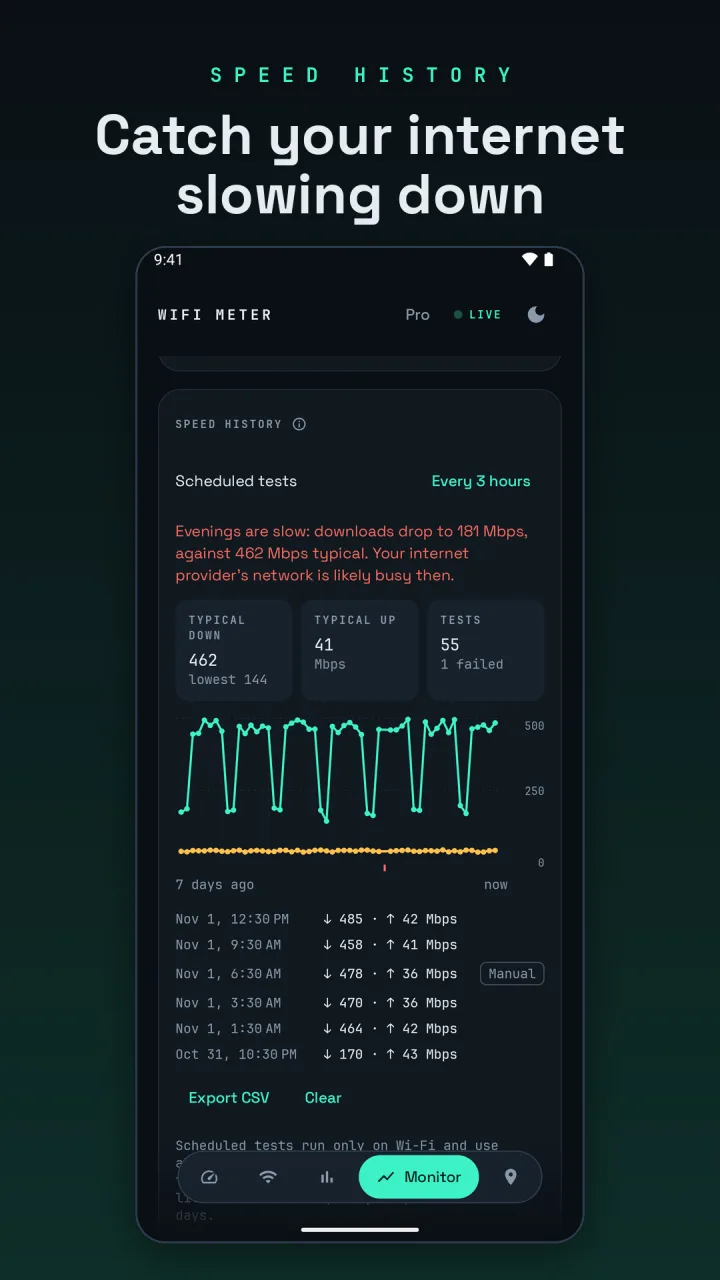
WiFi Meter's speed test (free, on the Meter tab) measures download, upload, latency and router ping against Cloudflare's speed test servers. Running the router ping first shows whether your Wi-Fi was the bottleneck.
With scheduled speed tests (in the Monitor tab's Speed history), the app tests on its own every 1, 3, 6 or 12 hours or once a day, so you don't have to remember the evening tests. Scheduled tests run only on Wi-Fi, and each uses at most about 25 MB of data. Manual tests are saved to the same history.
The history shows a 7-day chart, your typical download and upload, failed tests, and a note when one time of day is clearly slower than the rest. Export it as CSV and attach it to your complaint. Speed history and scheduled tests are part of WiFi Meter Pro.
Two things to keep in mind:
- The app tests over Wi-Fi, so test where your signal is strong, or note the signal in your record. The speed test's router ping helps you show that the Wi-Fi link wasn't the problem.
- If Cloudflare pauses tests after many in a short time, the app says so and doesn't save the run as a failure, so your record stays honest.