
Is it your Wi-Fi or your internet provider?
Your internet connection has two parts: the Wi-Fi link from your phone to your router, and the line from your router to your internet provider. To find which one is failing, measure both at the same time. If your router answers slowly or unevenly, the problem is your Wi-Fi. If the router is steady but the internet isn't, the problem is your provider.
What are the two parts of your connection?
Think of it as a chain with two links:
- Phone to router. This is your Wi-Fi. It's radio, so walls, distance, other networks and even microwaves can disturb it. You control this part.
- Router to the internet. This is the cable, fiber or DSL line from your home to your provider, plus your provider's own network. You don't control this part, but your provider is paid to keep it working.
A video call that freezes or a game that lags doesn't tell you which link broke. Both look the same on screen. The trick is to test each link separately.
How do you test each part?
The simplest test is ping. A ping sends a tiny message to a device and measures how long the reply takes, in milliseconds (ms). Lower is better.
- Ping your router. Your router is usually at an address like
192.168.0.1or192.168.1.1. On most phones you can find it in the Wi-Fi settings, under the details of the network you're connected to (often called "Gateway" or "Router"). A healthy Wi-Fi link answers in a few milliseconds, typically under 10 ms when you're in the same room. - Ping the internet. Pick a big, reliable server, such as Cloudflare's
1.1.1.1or Google's8.8.8.8. A healthy home connection usually answers in roughly 10 to 50 ms, depending on your connection type and how far the server is.
On a computer you can run ping 192.168.1.1 and ping 1.1.1.1 in a terminal or command prompt, in two windows at once. Let them run for a minute or two while the problem is happening.
Note that some routers ignore ping on purpose. If your router never answers, that alone doesn't mean anything is broken.
What do the numbers mean?
Three numbers matter more than the average:
- Latency is the time for one round trip. A router that normally answers in 3 ms and now takes 80 ms points to a struggling Wi-Fi link.
- Jitter is how much latency jumps around from one ping to the next. A connection that swings between 5 ms and 200 ms feels worse than one that sits steadily at 40 ms. Calls and games suffer most from jitter.
- Packet loss is the share of pings that never get an answer. Even 1–2% loss is enough to make video calls stutter.
Now compare the two links:
| Router ping | Internet ping | Most likely cause |
|---|---|---|
| Steady and low | Steady and low | The connection is fine; the problem may be the app or website you're using |
| Steady and low | High, jumpy or losing packets | Your internet provider |
| High, jumpy or losing packets | Also bad | Your Wi-Fi (everything behind a bad link looks bad too) |
| No answer at all | Steady | Your router blocks ping; judge by the internet side only |
The key rule: every internet ping travels over your Wi-Fi first, so a bad Wi-Fi link makes the internet side look bad too. If the router side is already bad, fix the Wi-Fi before blaming your provider.
Check from another spot
If the router ping looks bad, move. Take your phone into the same room as the router and test again.
- Better next to the router? Your Wi-Fi signal is too weak where you normally sit. See the guide on finding Wi-Fi dead spots.
- Still bad next to the router? The router may be overloaded, or your channel may be crowded by neighbors' networks. See how to find the best Wi-Fi channel.
If you have a computer with an Ethernet port, plug it straight into the router with a cable and run a speed test. A cable takes Wi-Fi out of the picture completely. If the wired result is also slow, the problem is your line or your provider.
"Connected, no internet"
Sometimes your phone says it's connected to Wi-Fi, but nothing loads. Ping helps here too:
- The router answers, the internet doesn't: your Wi-Fi works and the problem is past your router. Check the router's status lights for the internet or WAN connection, then contact your provider.
- The internet answers by IP address (like
1.1.1.1), but websites still won't load: the problem is probably DNS, the service that turns names likeexample.cominto addresses. Restarting the router often fixes it. If it keeps happening, set your router's DNS server to a public one such as1.1.1.1or8.8.8.8. - In a hotel, café or airport: you may need to sign in on a web page first. Look for a sign-in notification.
Restart the router or call your provider?
Restart your router first. Unplug it, wait 30 seconds and plug it back in. Give it a few minutes to reconnect. This clears many temporary problems, and it's the first thing support will ask you to do anyway.
Call your provider when:
- the router ping is steady and low, but the internet ping stays high, jumpy or lossy, and
- it keeps happening after a restart, and
- a device on a cable shows the same problem.
Write down what you saw and when. Providers take a complaint more seriously when you can show it's not your Wi-Fi. If the problem is slowness at certain times of day, the guide on proving slow internet to your provider shows how to collect evidence over several days.
Doing it with WiFi Meter
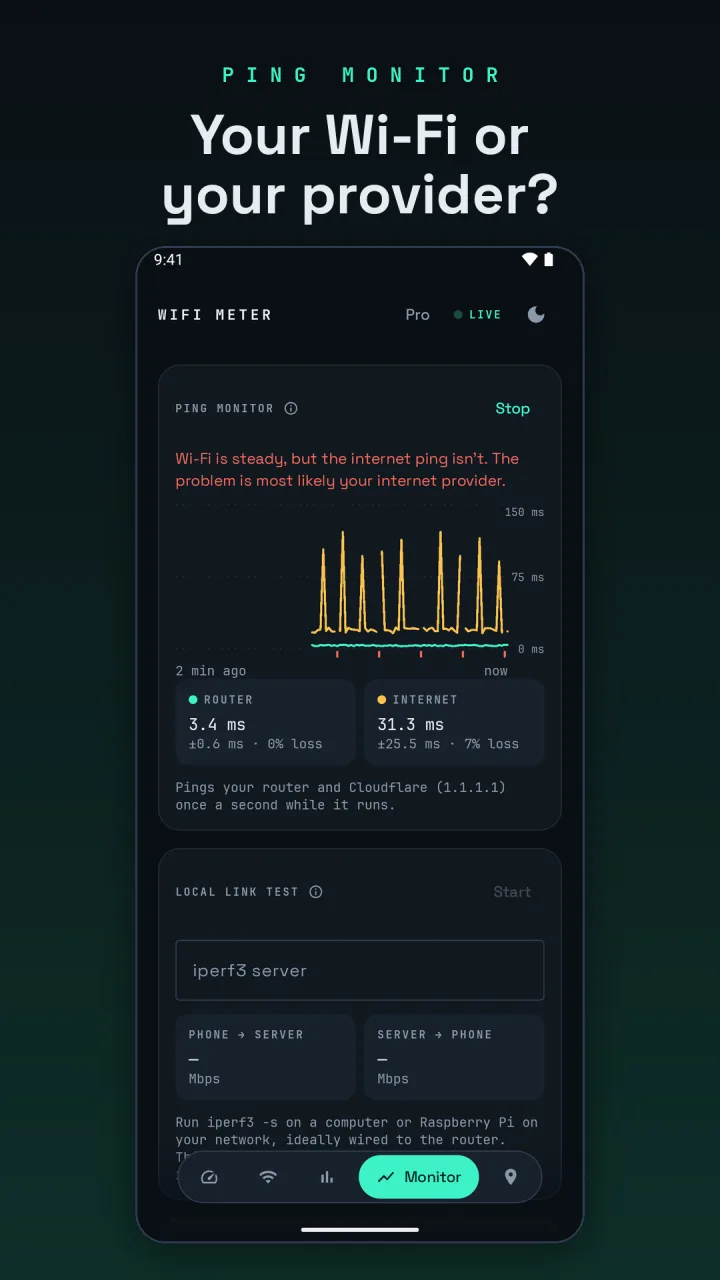
Open the Monitor tab and start the ping monitor. It pings your router and Cloudflare (1.1.1.1) once a second and graphs both for the last two minutes, with average, jitter and loss for each. After about 10 seconds it gives a verdict in plain words: both steady, the Wi-Fi is unsteady, or the Wi-Fi is fine and the internet isn't. If your router doesn't answer ping, it says so and measures the internet side only.
The speed test on the Meter tab also pings your router before it tests download and upload, so one tap gives you both sides.
WiFi Meter asks for location permission only because Android requires it for Wi-Fi scans. It never reads your GPS position.